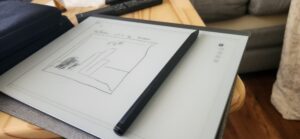

I have been a reMarkable 2 tablet user for years now. I was one of the first people to be placed on the pre-order list while version 2 was still being stocked in warehouses. The reMarkable tablet is known for its paper-like drawing experience, using e-ink and a pencil tool that feels like you’re writing on real paper. The battery lasts between two to three weeks while maintaining a good refresh rate.
When I first started using it, I was skeptical, but I was relieved that its natural feel was nothing like drawing on smart glass. The subtle sound and tactile feedback really caught my attention. It’s great for reading books and sketching on the fly.
I did find the navigation a bit tricky—especially flipping through pages in a single notebook—because of the e-ink latency, which isn’t touch-instant. As a visual person, I thought it would be helpful to have an easier way to jump between pages, regardless of where you are in the notebook. So that’s exactly what I designed.
I created a five-page template—one page for each of the five icon-based section tabs. You can download it below. It comes as a PDF file that you can upload to your reMarkable.
Once loaded, you’ll see five dim section icons at the top of the document. Clicking on each icon reveals a section labeled with letters A through E on the right-hand side. Each letter acts as a dedicated page for notes. No more searching for where you left a drawing or flipping endlessly through pages. Now, you can easily remember, “Oh, I put my markup designs under the Box icon on page C,” or “My presentation notes are under the Paragraph icon on page A.”
See below to download the landscape remarkable easy to use visual pdf.


You got it! Requested by popular demand, you can now use the PDF on landscape pages as well. Included are nine different PDFs, each with a unique top icon set.
African, Animal Faces, Blocks, Clickbait, Gumbo, Retro, The Irish, The Israel and The Office.